FORTE, Mouser's intelligent BOM Tool, transforms your imported bill of materials into an industry-leading part research and purchasing platform. You can set preferences for how you want your BOM to be processed, such as currency, formatting, RoHS options, and more. The tool will even remember your preferences and column mapping for future BOMs.
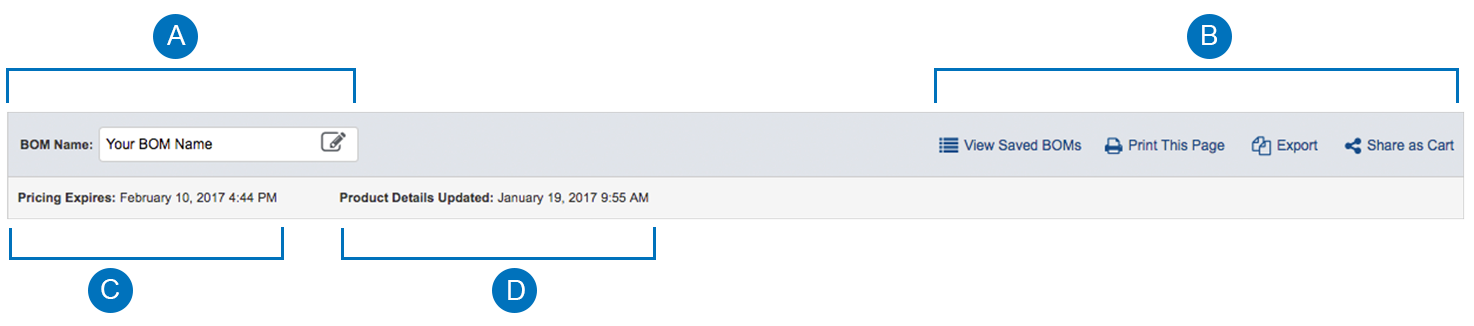
Near the top of the BOM Results Page, you can view general information about your BOM:
- BOM name
- Pricing Expiration Date
- Product Details Updated Date
- BOM Name
Customise the name of your BOM to best meet your needs. Simply click on the name and change it to your desired name.
- Tools
- View Saved BOMs:
View all BOMs associated with your account.
The Saved BOM manager is the one place to go to view and manage all aspects of your saved BOMs. - Print This Page:
Send the parts and pricing on the current page to your printer. - Export:
Customise and save the data from your BOM matches into a downloadable file. - Share as Basket:
Share the parts from your BOM with others as a shared basket.
- Pricing Expires The
quoted pricing for your BOM is valid for 30 days after it was initially processed. "Pricing Expires" displays the date the quoted pricing expires and needs to be refreshed with current pricing.
- Product Details Updated
Mouser's BOM Tool provides real-time product information, including product availability. "Product Details Updated" displays the date when product information was last retrieved for your page. Each time the results page is viewed, product information will automatically be refreshed and updated.
Toolbar
Near the top of the BOM Results Page is the BOM Toolbar. This section provides quick access to several of the common BOM Tool functions, including:
- Add or Delete Parts in your BOM
- Add Parts - Find and add more parts to your BOM.
- Delete Selected - Remove the selected part or parts from your BOM.
- Filter
Filter your BOM results by selecting one of the options in the dropdown: - All Lines - Displays all of your BOM lines.
- Exact Matches - Displays lines with a Part Match Confidence of 100%.
- Not Exact - Displays lines where the Part Match Confidence is below 100%.
- No Matches - Displays lines where no product match was found.
- Not Orderable - Displays lines which are not available to order at this time.
- Display Rows
Select from the dropdown to display up to 100 rows at a time.

Each line on the results page displays information and pricing for the matched product. Every column displays a set of information regarding the product:
- Select - Selects the part to be included in an action, such as "Add to Basket" or "Delete".
- Uploaded Data - Shows the part information provided from the spreadsheet or copy and paste data.
- Matched Part Detail - Displays the part Mouser matched based on your input. Contains various key information such as:
- Product Image
- QuickView Link to see additional information about the product
- RoHS Compliance
- Mouser and Manufacturer Part Number
- Manufacturer Name
- Product Description
- Part Match Confidence Score
- Design Risk - Mouser's Design Risk combines several factors into a single risk rank to help engineers determine the right components to design into their products.
- Min / Mult - Quantity for the minimum amount and multiple necessary to order a product.
- Availability - Amount of product available to order from Mouser.
- Packaging Options - Currently applied packaging type for the product.
- Qty. - Current part quantity selected.
- Unit Price - Quoted price for an individual part based on the selected quantity.
- Ext. Price - Quoted price for entire quantity selected for a part.
- Delete - Delete the selected part from BOM.

Pricing, Packaging, & Quantities
Quantities
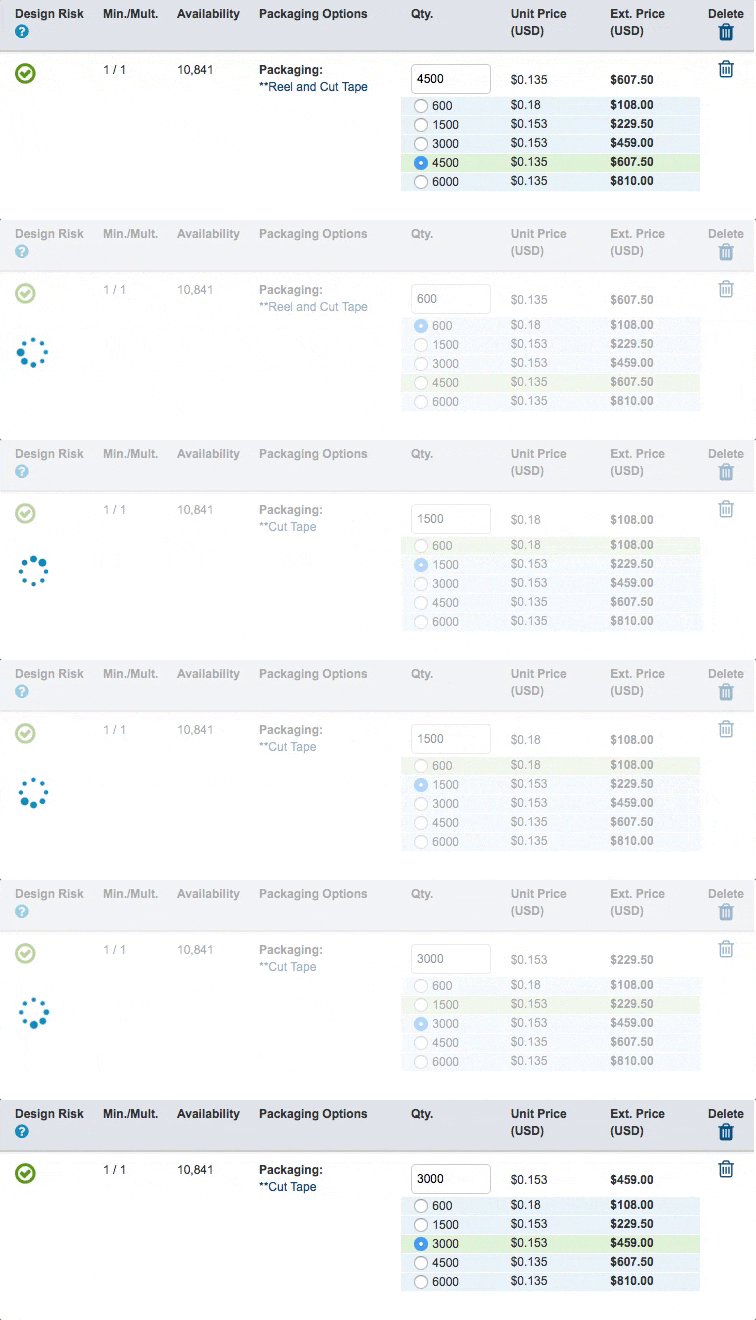
Up to five (5) quantities can be uploaded through Mouser's BOM Tool. The quantity in the text field is considered to be the official quantity for the line.
Quantities can be changed at any time. There are two ways to update the quantity for a part:
- Select from any of the uploaded quantities.
Select the line with the desired quantity. The page will update and the new selected quantity and pricing will be displayed.
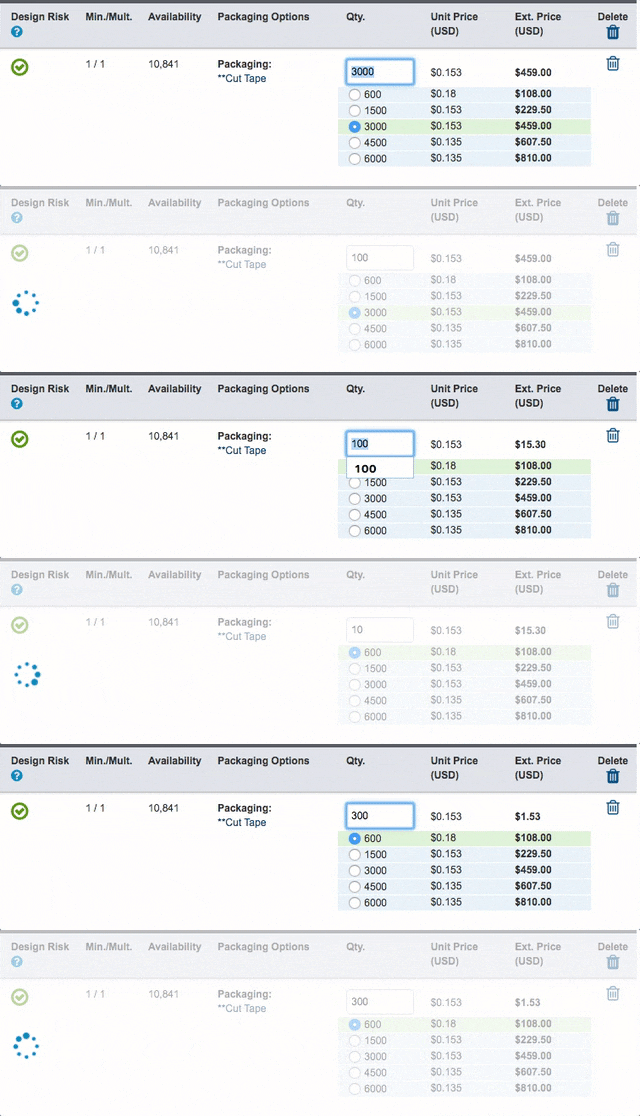
- Enter a new quantity number into the text field.
Alternatively, you could simply enter the desired quantity in the Quantity field. The page will update, and the new quantity and pricing will be displayed.
Packaging
For some parts, more than one packaging option may be available. Parts with multiple packaging options will display their currently selected packaging type in the Packaging Options column.
If you wish to change the selected packaging, click the text for the packaging type and a window with available choices will appear.

Pricing
Mouser's BOM Tool guarantees the pricing quoted for thirty (30) days after the completion of processing for your BOM. Pricing depends on the quantity provided. Both the unit price and the extended price are shown in the BOM Tool.
To view pricing, the product must be available and the quantity must adhere to the minimum order and multiple amounts.

Back to Tools
Related Articles